I am using Fedora KDE 41. I noticed that my swap space is seemingly located on dev/zram0 and it shows as a separate disk. This is weird because I have 2 disks and it is not shown as a part of either of them. How would I go about increasing my swap to 32 GiB, so I can hibernate my laptop, in case I have to?
Also, how is ZRAM different from swap space I would create my downsizing any of my “regular” partitions? Can I delete this zram and just create a 32 GiB partition with mountpoint as linuxswap? Would the end result be the same thing?
Swap space Is a practical layer between RAM, disk, and system stability
Swap space Is reserved virtual memory that Linux can use when physical RAM is under pressure. It may live in a disk partition, a swap file, or compressed RAM through zram. Swap space helps prevent abrupt application failures, supports heavier workloads, and can enable hibernation when backed by persistent storage. It is slower than RAM, but it gives the kernel more room to manage memory instead of immediately killing processes.
Swap space is often misunderstood because it appears simple in system monitors while the behavior underneath is dynamic. A laptop may show a device such as
/dev/zram0
, a server may rely on a dedicated swap partition, and a workstation may use a swap file on an SSD. These are all forms of Swap space, but they make different tradeoffs around speed, persistence, resizing, and hibernation.
What is Swap space in Linux?
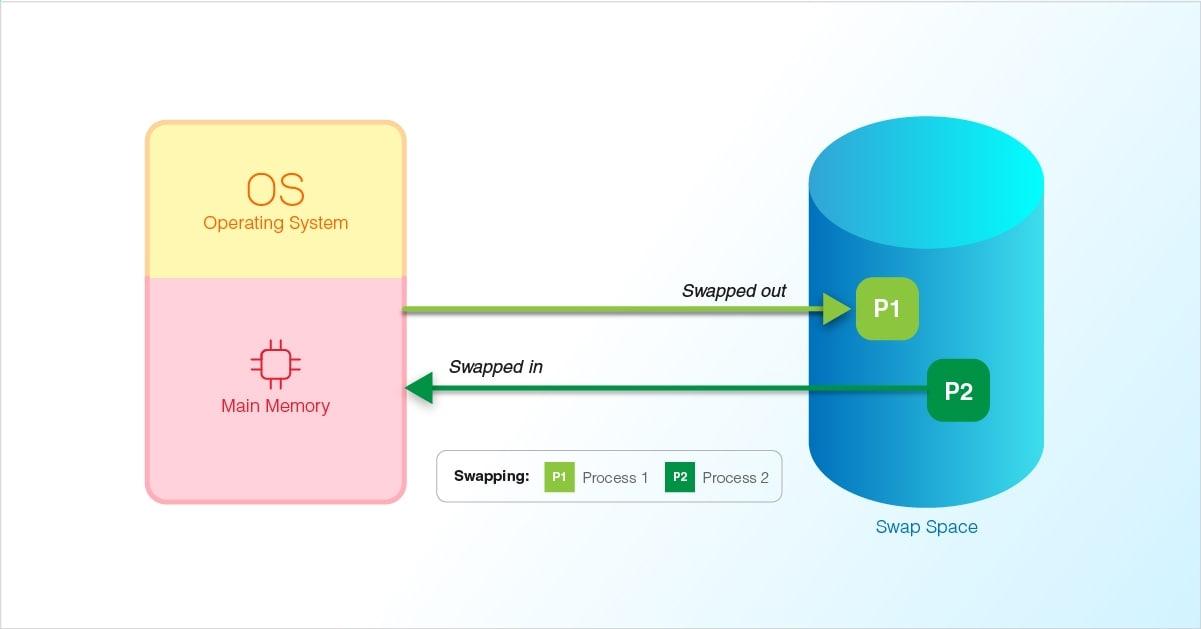
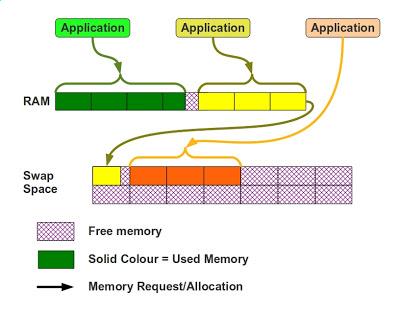
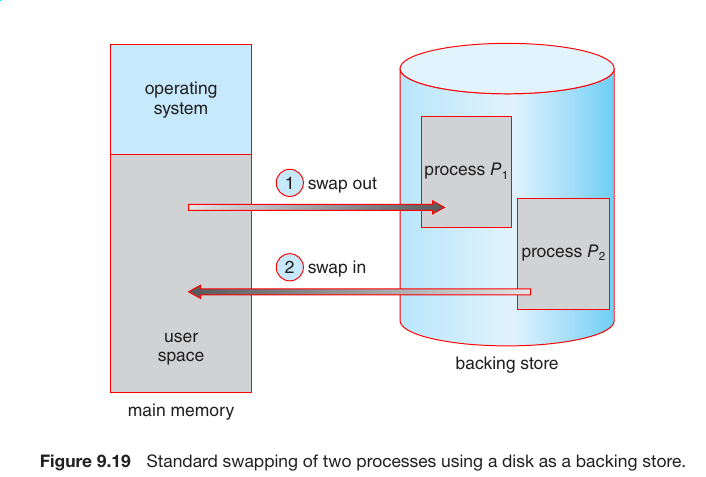
Swap space is an area that the Linux kernel treats as an extension of virtual memory. When RAM contains pages that are not actively needed, the kernel can move some of those pages into Swap space and keep active memory available for programs, filesystem cache, graphics workloads, and background services. This does not make a system as fast as if it had more RAM, but it can keep the system responsive under temporary memory pressure.
Swap space can be created as a partition, a file, or a compressed block device in RAM. A swap partition is a fixed area of a drive marked for swapping. A swap file is a regular file prepared with the correct permissions and activated with
swapon
. Zram creates compressed Swap space inside RAM, which is why it may appear as a block device even though it is not stored on a physical disk.
For a new user, the key distinction is persistence. Disk-backed Swap space survives across reboots and can be used for hibernation when the bootloader and kernel are configured correctly. Zram Swap space is rebuilt at boot and lives in volatile memory, so it can help with day-to-day pressure but cannot hold a hibernated system image after power is removed.
How does Swap space actually work?
Swap space works through paging. Linux divides memory into pages and tracks which pages are active, inactive, file-backed, anonymous, clean, or dirty. When the system needs RAM, it may reclaim cache, drop clean pages, compress pages into zram, or write less-used anonymous pages to disk-backed Swap space. The goal is not simply to fill swap; the goal is to keep useful work moving.
Swap space use does not automatically mean something is wrong. A small amount of swap activity can be normal on a long-running desktop, especially when many browser tabs, IDEs, containers, virtual machines, or Electron apps have been open. The warning sign is sustained heavy paging, because disk-backed Swap space is far slower than RAM and can make applications feel delayed or frozen.
In practice, the kernel balances Swap space with the page cache and the
vm.swappiness
setting. A higher swappiness value makes the kernel more willing to move inactive pages out of RAM, while a lower value tends to keep anonymous application memory in RAM longer. The best setting depends on workload, storage speed, RAM size, and whether the system uses zram.
Why does Swap space sometimes appear as zram?
Swap space appears as zram on many modern Linux distributions because compressed memory can be faster than writing to a drive. Zram creates a compressed block device, commonly named
/dev/zram0
, and uses part of physical RAM to store compressed pages. Because compression can reduce the size of inactive memory pages, a system may effectively hold more inactive data in RAM than it otherwise could.
Swap space on zram is different from a partition on an NVMe drive. A disk partition consumes storage capacity whether it is used or not. Zram uses very little memory until pages are actually stored, but the data remains in RAM. This is why zram can show up like a separate device in partition tools even though it does not belong to
/dev/nvme0n1
,
/dev/sda
, or any other physical disk.
Swap space backed by zram is useful on desktops and laptops because it avoids many slow disk writes and can improve behavior on machines with limited RAM. It is also useful on systems with fast SSDs because RAM compression is still usually quicker than storage I/O. The tradeoff is that compressed pages still consume physical memory, and zram cannot store a hibernation image after shutdown.
Users who want to tune zram should use their distribution's supported mechanism. On systemd-based systems this may involve
zram-generator.conf
; on other systems it may involve a service, a package preset, or a distribution-specific configuration file. Swap space tuning should be changed deliberately, with a known rollback path, because disabling zram without another active swap device can make memory pressure harsher.
Should Swap space be a file or a partition?
Swap space as a file is the simplest option for many installations because it can be resized without repartitioning the drive. A swap file works well on common Linux filesystems when created correctly, secured with restrictive permissions, initialized with
mkswap
, and activated through
/etc/fstab
. For most desktop users, this approach is flexible and easy to maintain.
Swap space as a partition still has advantages in some setups. It is straightforward for installers, easy to identify from rescue environments, and commonly used for hibernation. A partition may also fit older administrative habits or environments where filesystem-level constraints make swap files less convenient. The downside is that resizing a partition can require more care, especially when it sits beside root, home, or encrypted volumes.
The practical comparison is not that one form of Swap space is always better. A file is usually easier to adjust; a partition is often cleaner for dedicated disk-backed swap and hibernation; zram is fast for compressed memory pressure but not persistent. Many systems combine them, using zram at higher priority and a lower-priority disk-backed swap file or partition as extra room.
| Type | Where it lives | Best fit | Main limitation |
|---|---|---|---|
| Swap file | Filesystem on disk | Flexible resizing | Needs correct creation and filesystem support |
| Swap partition | Dedicated disk area | Hibernation and fixed setups | Harder to resize later |
| Zram | Compressed RAM | Fast pressure relief | Not usable for hibernation |
How much Swap space do you need?
Swap space sizing depends on what the machine must do. A lightweight desktop with plenty of RAM may need only modest swap. A development workstation running containers, browsers, local databases, and virtual machines may benefit from more. A laptop that must hibernate needs persistent Swap space large enough for the memory image in its real configuration, not just a generic rule copied from an old guide.
Swap space equal to RAM is a familiar rule of thumb, but it is not universal. Systems with 32 GB or 64 GB of RAM do not automatically need the same amount for normal operation. Hibernation is the case where persistent capacity matters most, because the kernel must write enough state to disk and later resume from it. Compression, used memory, and configuration affect the real requirement.
Swap space planning works best when it starts with the workload:
- Use modest Swap space for ordinary browsing, office work, and media playback on a machine with sufficient RAM.
- Add more disk-backed Swap space for virtual machines, large builds, scientific tools, creative suites, or memory-spiky jobs.
- Keep zram enabled when the distribution uses it well and the system benefits from compressed memory.
- Use persistent Swap space for hibernation, not zram alone.
-
Watch real behavior with
free,swapon --show,vmstat, and system logs before making large changes.
For related setup decisions, a focused guide to can be more useful than repartitioning immediately. Users comparing compressed memory behavior may also want to read about before changing disk layout.
Can Swap space be used for hibernation?
Swap space can support hibernation only when it is backed by persistent storage and properly configured for resume. A swap partition or suitable swap file can hold the hibernation image. Zram cannot, because it lives in RAM and disappears when power is removed. This difference matters most on laptops, where the user expects a suspended system to survive a drained battery or full poweroff.
Swap space for hibernation also involves boot configuration. The kernel needs to know where the resume image is stored, and encrypted systems may need extra configuration so the resume device is available early enough during boot. Secure Boot, full-disk encryption, Btrfs layouts, and initramfs tooling can all affect the exact steps. A distribution's documentation should be followed for the final commands.
In practice, many users keep zram for normal responsiveness and add a lower-priority disk-backed swap area for hibernation. This lets Swap space serve two separate purposes: compressed RAM for routine memory pressure and persistent storage for resume. The two are not identical, and treating them as interchangeable is a common source of confusion.
What are the benefits and risks of Swap space?
Swap space improves stability by giving the kernel more choices before it reaches the out-of-memory killer. It can protect long-running applications, background jobs, and desktop sessions from failing during short memory spikes. It can also make a system more forgiving when applications allocate memory unevenly or when a workload briefly exceeds available RAM.
Swap space also has costs. Disk-backed swapping is slower than RAM, and heavy swap activity can make a machine feel unresponsive. On SSDs, swap writes contribute to write wear, although modern drives usually include wear leveling and are designed for many writes. The practical issue for most users is performance first, not immediate hardware failure, but constant swapping is still a signal to review workload, RAM, and application behavior.
Swap space can also hide capacity problems. A system that constantly relies on swap may avoid crashes while running far slower than expected. For servers, that can mean poor latency; for desktops, it can mean stutters and frozen windows. Monitoring matters because the right answer may be more RAM, a workload limit, a container memory cap, or application tuning rather than simply adding more swap.
How do you check and manage Swap space safely?
Swap space should be inspected before it is changed. Commands such as
swapon --show
,
free -h
,
lsblk
, and
cat /proc/swaps
show what is active and where it is located. Disk tools may show zram as a device, but that does not mean it is a physical partition. The distinction matters before deleting, resizing, or disabling anything.
Swap space changes should be made in small, reversible steps. Create a new swap file or partition, activate it temporarily, confirm it appears with the expected priority, then add the persistent entry. If disabling zram or changing its size, confirm that another swap device exists first. A mistake in
/etc/fstab
can slow boot or require recovery work, so exact device names and UUIDs deserve careful checking.
A typical workflow is straightforward: identify current Swap space, decide whether the need is performance relief or hibernation, choose file, partition, or zram, test the new setup, then make it persistent. After rebooting, confirm the active devices again. This process avoids guessing and makes the result easier to explain later when the system is upgraded or moved to a new storage layout.
When should you leave Swap space alone?
Swap space does not always need intervention. If the system is responsive, memory pressure is rare, and existing zram or swap settings match the distribution defaults, changing them may provide no practical benefit. Modern Linux defaults are often designed to balance desktop responsiveness, low-memory survival, and storage wear without requiring every user to become a memory-management specialist.
Swap space deserves attention when there is a clear reason: hibernation fails because there is no persistent swap, workloads are being killed during memory spikes, the machine slows dramatically under predictable tasks, or monitoring shows sustained paging. Without one of those symptoms, increasing swap may only consume disk space or make configuration more complex.
Swap space is best treated as one part of the memory system rather than a magic fix. RAM capacity, application behavior, filesystem cache, zram, cgroups, desktop environment, SSD speed, and hibernation requirements all interact. Once those pieces are understood, the right setup is usually clear: keep fast compressed swap for everyday pressure, add persistent swap for hibernation, and monitor real usage instead of relying only on old sizing rules.
Questions and Answers
What is Swap space used for in Linux?
Swap space is used as an extension of virtual memory when physical RAM is under pressure. Linux can move less-active memory pages into a swap file, swap partition, or zram device so active programs have more room. It helps prevent abrupt failures during memory spikes, but it is not a replacement for RAM because disk-backed swap is much slower.
Is zram the same as regular Swap space?
Zram is a form of Swap space, but it is not the same as disk-backed swap. It stores compressed memory pages inside RAM and commonly appears as a block device such as /dev/zram0. This can be fast and useful for everyday memory pressure, but zram is volatile and cannot hold data after poweroff, so it is not suitable for hibernation.
Should I use a swap file or a swap partition?
A swap file is usually easier to create, resize, and remove, which makes it a practical choice for many desktop and server systems. A swap partition can be cleaner for fixed layouts and is commonly used for hibernation. Both can work well when configured correctly, so the better choice depends on whether flexibility or a dedicated persistent area matters more.
How much Swap space do I need for hibernation?
Hibernation needs persistent Swap space, usually a swap partition or correctly configured swap file, large enough to store the system image. The old rule of matching RAM size is a useful starting point but not always exact because compression, used memory, and distribution configuration matter. Zram alone cannot support hibernation because it disappears when power is removed.
Does using Swap space damage an SSD?
Disk-backed Swap space writes data to storage, so heavy sustained swapping contributes to SSD write activity. Modern SSDs use wear leveling and are designed for many writes, so normal swap use is usually not an immediate concern. The bigger practical warning is performance: if a system constantly swaps to disk, it may need more RAM, workload tuning, or better memory limits.
How can I check current Swap space on Linux?
You can check active Swap space with commands such as swapon --show, free -h, cat /proc/swaps, and lsblk. These reveal whether swap is coming from a file, partition, or zram device. If a device named /dev/zram0 appears, it is compressed RAM rather than a physical disk partition, even though some tools display it like a block device.
Can I use both zram and disk-backed Swap space?
Yes. Many systems use zram as higher-priority Swap space for fast compressed memory handling and keep a lower-priority disk-backed swap file or partition for extra capacity or hibernation. This combined setup can make sense because zram and persistent swap solve different problems. The important detail is to verify priorities and confirm the intended devices are active after rebooting.